Tampermonkey Scripts
Collection of Tampermonkey scripts to enhance your Little Hotelier experience.
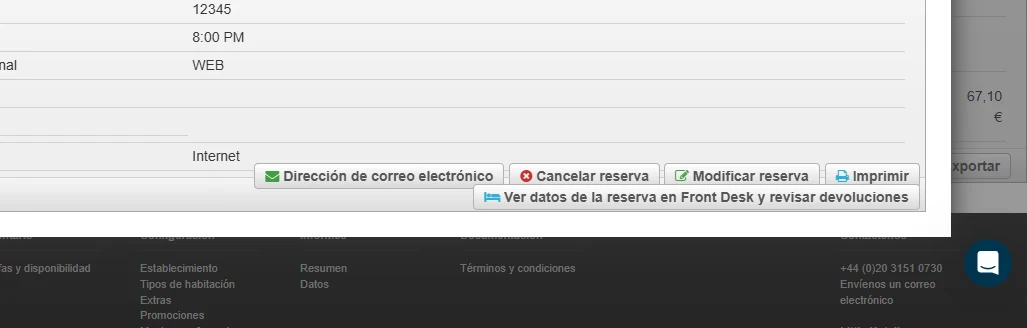
Add Button Check on Front Desk from Direct Booking
This script adds a button to each reservation in Little Hotelier's Direct Booking extranet that opens the same booking in Front Desk, in a new tab. It is for front desk staff and owners who handle direct bookings and need to check the full reservation or review a refund without searching for it by hand.
The problem it solves
Direct Booking (the booking engine back office at app.thebookingbutton.com) and Front Desk are separate screens. When a guest who booked on your website calls about a change or a refund, you find the booking in Direct Booking, but the room, payments and guest details live in Front Desk. Without the script, you copy the reference, switch to Front Desk and search by hand.
What changes
- On the Guest tab of a Direct Booking reservation, a new button appears in the actions list: "View reservation data in Front Desk and check refunds" (or its Spanish version).
- The button opens the Front Desk Reservations list in a new tab, already filtered by the reservation's booking reference.
- The search covers check-in dates from two months ago to one year ahead, so recent and upcoming stays are found.
- The script reads your property ID from the Front Desk link on the page, so the search opens on your own property.
- It checks the page every two seconds. When you move to another reservation, the button is updated to point at the new booking reference.
How to install
You need the free Tampermonkey extension. Press Install on Tampermonkey on this page, confirm, and reload Direct Booking. The installation guide shows every step. The script runs only on Direct Booking reservation pages (app.thebookingbutton.com/extranet/properties/.../reservations). It is free and open source: you can read the code on GitHub.
Good to know
- The script does not check whether you are signed in to Front Desk. If you are not, sign in and press the button a second time.
- Reservations with a check-in date more than two months in the past, or more than a year ahead, fall outside the search range and won't appear in the results.
- If the Front Desk link is missing from the page, the script falls back to a fixed property ID written in the code, and the search will not open on your property. Edit that value in the script if this happens.
- The button text exists in English and Spanish only.
- It stores nothing and sends nothing outside Little Hotelier.
Related
- Tables Full Width for wider tables in Direct Booking
- Little Hotelier Chrome extensions: free userscripts
Auto Refresh On Inactivity
This script reloads the Little Hotelier page you have open after 10 minutes with no activity. It is meant for reception computers where Little Hotelier stays open all day, so staff who come back to the desk see current bookings and a working session instead of an old page that shows errors.
The problem it solves
A page left untouched keeps showing the data it loaded at the start. New bookings, cancellations and room moves made by channels or colleagues don't appear until someone reloads. The session can also expire in the background, and the first click after a break then fails. Reloading by habit is easy to forget when a guest is waiting at the desk.
What changes
- A 10-minute timer starts when the page loads.
- Any click, mouse movement, scroll or touch movement on the page restarts the timer, so the page never reloads while someone is using it.
- When 10 minutes pass with none of those actions, the script reloads the same address you were on.
- Nothing else on the page changes: no new buttons or panels.
How to install
Install the free Tampermonkey extension, press Install on Tampermonkey on this page, confirm, and reload Little Hotelier. The installation guide walks through each step. The script runs on the three Little Hotelier addresses: app.littlehotelier.com (Front Desk), application.littlehotelier.com (the newer screens such as the calendar) and app.thebookingbutton.com (Direct Booking). It is free and open source; the code is on GitHub.
Good to know
- A reload discards anything not yet saved. Typing on the keyboard does not count as activity, so if someone writes a long note for 10 minutes without touching the mouse, the page can reload before they save. Save as you go.
- The 10-minute delay is a fixed value in the script (600 seconds). To change it, edit that number in the Tampermonkey editor.
- It works the same on desktop and touch screens, because touch movement and taps also count as activity.
- It runs on every Little Hotelier page it matches, including the calendar, the reservations list and Direct Booking.
- The script stores nothing and sends nothing anywhere.
Related
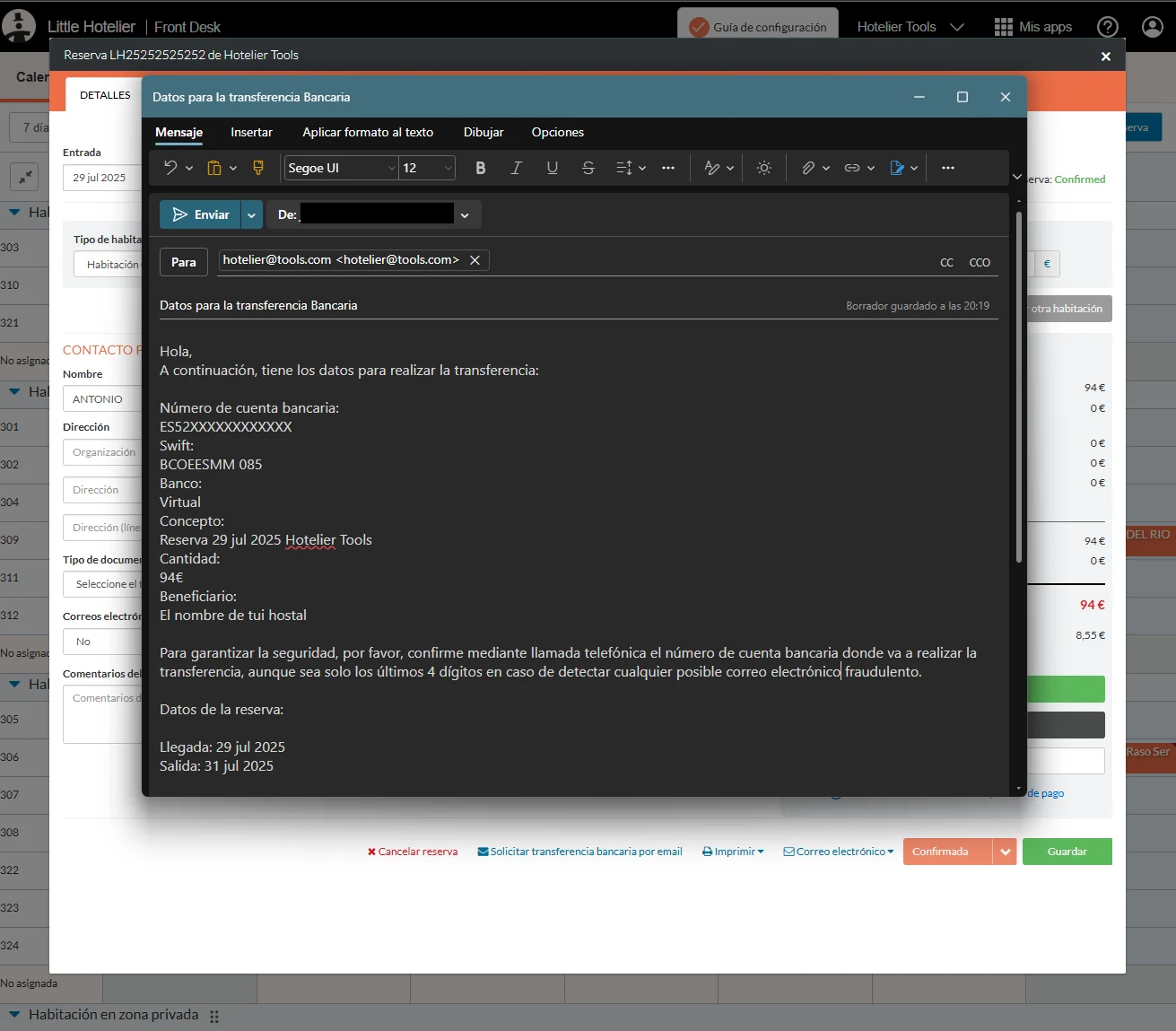
Bank Transfer Email Button
This script adds a button to Little Hotelier reservations that opens a ready-made email asking the guest to pay by bank transfer. The email already contains the outstanding amount, the stay dates and the rooms booked. It is aimed at owners and front desk staff at properties that accept bank transfers. It is not published for general use: the current version is written for one property, so it is set up on request.
The problem it solves
When a guest wants to pay by transfer, someone has to write the same email every time: account number, bank, beneficiary, a payment reference, the exact amount and the booking dates. Copying the amount and dates by hand is slow, and a wrong reference makes the payment hard to match later.
What changes
On the reservation screen in Front Desk:
- A new option is added to the Email menu, and a new button with an envelope icon appears next to the Print button.
- Clicking either one opens your email program with a new message addressed to the guest's email.
- The message is filled from the reservation: the outstanding amount, a payment reference made of the check-in date and the guest's first name, the check-in and check-out dates, and the rooms grouped by room type with a count for each.
- It also includes a link to the reservation in Little Hotelier, for your own reference.
How to install
This script is not published for general use yet. Please contact me and I can adapt it to your property. Once adapted, it installs like the other scripts: you need the free Tampermonkey extension, and the installation guide shows the steps. It runs only on Little Hotelier Front Desk pages (app.littlehotelier.com). It is open source, and you can read the current code on GitHub.
Good to know
- The bank details, property name, signature, arrival time and email wording are written directly into the code, in Spanish, for the author's own property. They must be changed before anyone else can use it.
- The amount is shown in euros.
- The email opens in the default email program on your computer through a standard email link. Nothing is sent until you press send there.
- The email asks guests to confirm the account number by phone, as protection against fraudulent emails that change bank details.
- The script stores nothing and sends no data anywhere. It only reads fields already on the reservation screen.
Related
- Update Payment Link Button for card payments by link
- Extra Invoice Print Button
- Little Hotelier Chrome extensions: free userscripts
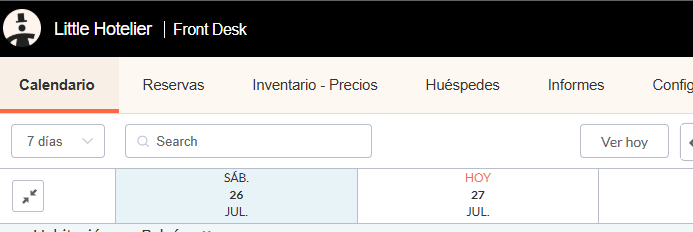
Change Inventory Name
This small script renames the Inventory item in Little Hotelier's top menu to Inventory - Prices (or Inventario - Precios in Spanish). It is for owners who train new front desk staff: the label tells people that rates are set on that screen, not only room availability.
The problem it solves
In Little Hotelier, room rates are edited on the Inventory screen. For someone new to the system, "Inventory" sounds like stock or room counts, so people look for a "Prices" or "Rates" menu that isn't there. A clearer label saves the same question being asked again at every shift change.
What changes
- In the horizontal navigation menu of the newer Little Hotelier screens, the item labelled "Inventory" becomes "Inventory - Prices".
- If the menu is in Spanish, "Inventario" becomes "Inventario - Precios".
- The suffix follows the language of the page: Spanish pages get "Precios", any other language gets "Prices".
- Only the visible label changes. The link still goes to the same Inventory screen.
- Because the menu loads in stages, the script tries three times in the first few seconds after the page loads, and it never adds the suffix twice.
How to install
You need the free Tampermonkey extension. Press Install on Tampermonkey on this page, confirm, and reload Little Hotelier. The installation guide shows each step. The script runs only on application.littlehotelier.com, the address used by the newer Little Hotelier screens such as the calendar. It is free and open source: see the code on GitHub.
Good to know
- It only recognises the menu item when it reads exactly "Inventory" or "Inventario". If Little Hotelier is set to another language, such as French or German, the label stays as it is.
- It changes the top navigation menu only. Pages on app.littlehotelier.com and Direct Booking are not matched, so their menus are unchanged.
- It works the same on desktop and touch screens.
- It stores nothing and sends nothing anywhere.
- If Little Hotelier renames or redesigns the menu, the label may stop changing until the script is updated.
Related
- Prices Display shows your Inventory prices on the calendar
- Dynamic pricing for small hotels on Little Hotelier
- Little Hotelier tips and hidden features
Compact Calendar UI
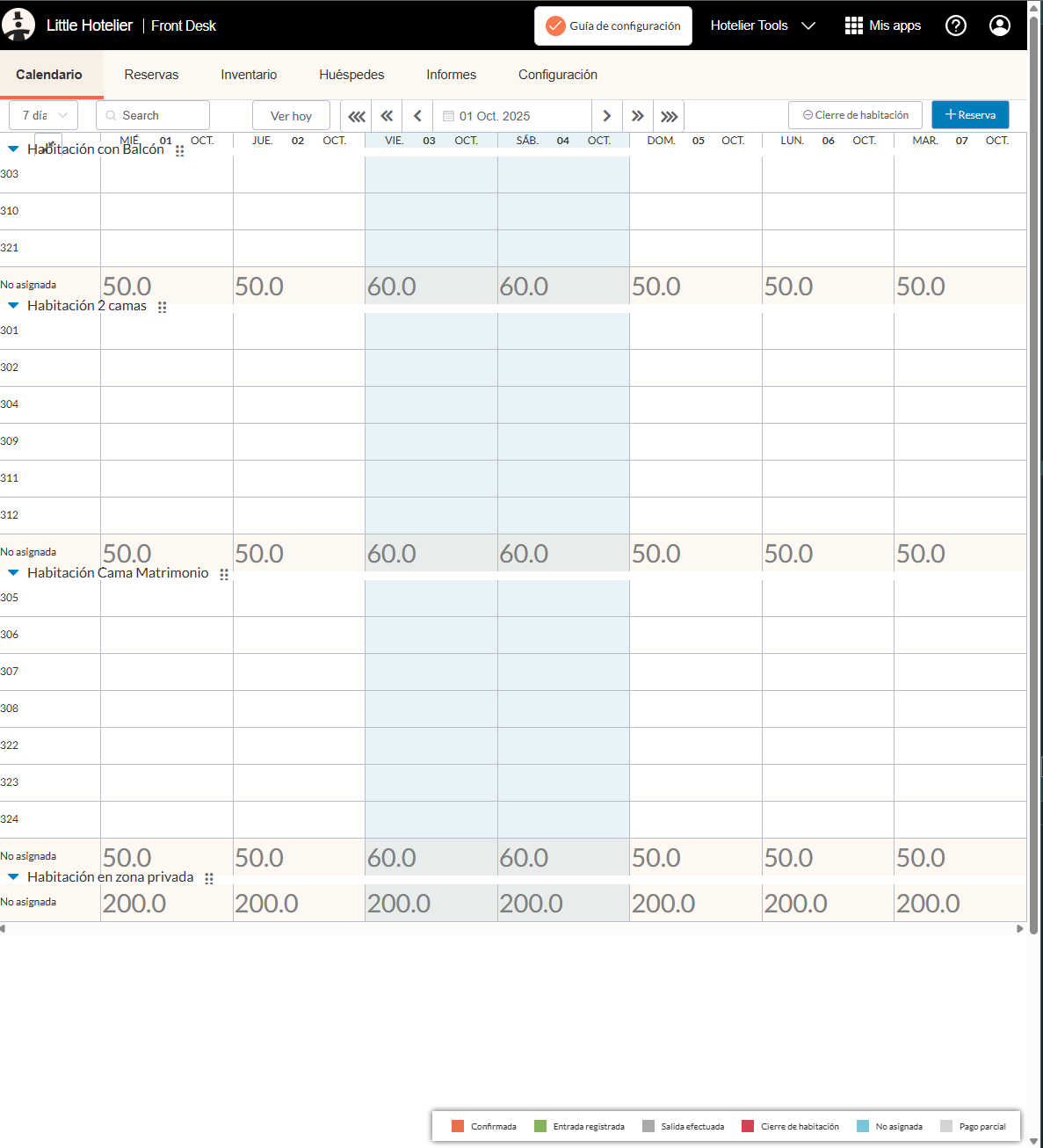
This script trims empty space from the Little Hotelier calendar so more rooms fit on the screen without scrolling. It is for front desk staff who keep the calendar open all day and want to see the whole property, or most of it, at a glance.
The problem it solves
The standard calendar uses a lot of vertical space before the first booking appears. Each day's header stacks its information on three lines, every room type has its own tall heading row, and the navigation and filter bar add extra margins. On a laptop screen this pushes rooms out of view, so you scroll up and down to check availability while a guest is waiting.
What changes
All changes are visual, made with styles added to the page:
- Date headers: the weekday and date sit side by side on one row instead of being stacked on three lines.
- Top left header cell: its height is limited, so the header row stays short.
- Room type heading rows: shorter, with a transparent background and no borders, so they take less space between rooms.
- Expand or collapse all button: its padding and margins are removed.
- Navigation and filters: the margins above the date navigation and below the filter options are reduced.
The booking bars and room rows themselves are not changed. Only spacing and the header layout are.
How to install
Install the free Tampermonkey extension, press Install on Tampermonkey on this page, confirm, then reload the calendar. Step-by-step pictures are in the installation guide. The script matches app.littlehotelier.com and application.littlehotelier.com, but its styles only affect the calendar table and its toolbar. It is free and open source: read the code on GitHub.
Good to know
- It adds its styles once when the page loads. It does not read or store any booking data.
- It does not change the number of days shown. Use Little Hotelier's own date range options for that.
- It works the same with a mouse or on a touch screen.
- It works alongside Prices Display, which writes each night's price under every room type on the same calendar.
- If Little Hotelier changes the calendar's layout, some of the adjustments may stop applying until the script is updated. Switch it off in the Tampermonkey menu if anything looks wrong.
Related
Compact UI Reservation Details
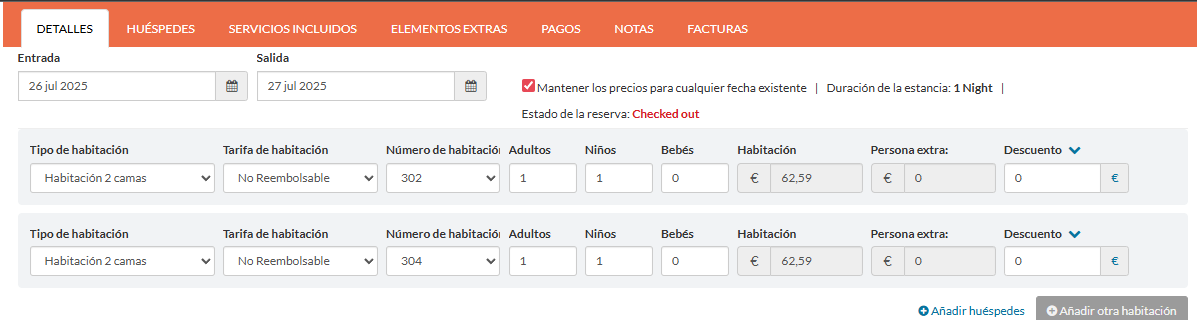
This script tightens the layout of the reservation window in Little Hotelier Front Desk and gives the guest comments box more height. It is for front desk staff who open many reservations a day and want to read the notes left by guests or colleagues without scrolling inside a small box.
The problem it solves
Guest comments often hold the information that matters at check-in: a late arrival, a cot, a parking request, a special occasion. In the standard reservation window the comments field is short, so longer notes are cut off and you have to scroll inside it. At the same time, padding at the top of the tabs and spacing around alert areas and separator lines push the useful fields further down.
What changes
On the reservation screen in Front Desk:
- The guest comments text box is at least 126 pixels tall, so several lines of notes are visible at once.
- The padding at the top of the reservation tabs' content is removed.
- Empty alert placeholder areas no longer add a margin.
- The horizontal separator lines lose their extra margin.
The fields, buttons and tabs stay where they are. Only the spacing and the height of the comments box change.
How to install
Install the free Tampermonkey extension, press Install on Tampermonkey on this page, confirm, and reload Little Hotelier. The installation guide has pictures for every step. The script runs on Front Desk pages at app.littlehotelier.com, and its styles only affect the reservation window. It is free and open source: the code is on GitHub.
Good to know
- It works by adding a few styles when the page loads. It does not read, change or store reservation data.
- Notes longer than the new height still scroll inside the box as usual.
- It works the same on desktop and touch screens. For a tablet, combine it with Improve Style For Touch Screens, which enlarges the Print and Email menus.
- It also pairs well with Easy Save Province and Country, which works on the guest forms of the same window.
- If Little Hotelier changes the reservation window, some spacing tweaks may stop applying until the script is updated.
Related
Easy Save Province and Country
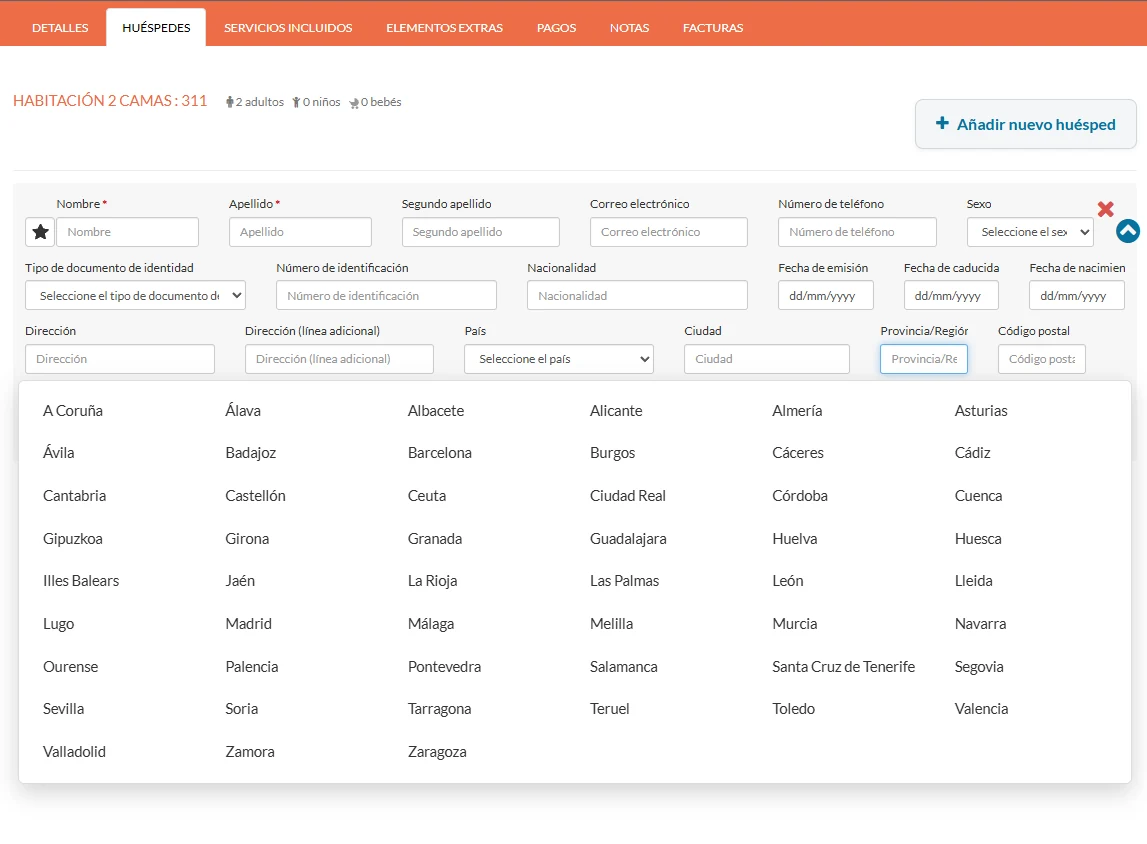
This script makes it faster to complete guest details in a Little Hotelier reservation, especially for Spanish guests. When you click the province field, it shows a list of Spanish provinces to tap, and picking one also sets the country to Spain. It is built for front desk staff at properties in Spain and is designed to be easy to use on a tablet.
The problem it solves
For Spanish guests, Little Hotelier needs a province as well as the country, and reports such as the INE occupancy survey group guests by province of residence. Typing province names by hand leads to spelling variants (Vizcaya or Bizkaia, Orense or Ourense), the country list is long to scroll, and an additional guest's form will not save while its name fields are empty.
What changes
On the reservation edit screen in Front Desk:
- Province picker: focusing the province field opens a grid with the 50 Spanish provinces plus Ceuta and Melilla. Typing filters it, and common alternatives such as Gerona, Lérida, Seville, Mallorca or Tenerife find the right province.
- Country set for you: choosing a province sets the guest's country to Spain.
- Country picker: the country field opens a searchable grid showing each country in Spanish, with the English name below.
- Empty names filled: when you pick a province or country, empty first and last name fields on that guest form get the main guest's name, or an underscore "_" if that is empty too, so the form can be saved.
- Guest forms opened: collapsed guest forms are expanded automatically and the cursor goes to the province field.
- Touch-friendly buttons: the add-guest button and the expand arrows are larger, and the red cross to remove a guest is always visible.
How to install
You need the free Tampermonkey extension. Press Install on Tampermonkey, confirm, and reload the reservation. The installation guide shows every step. The script runs only on reservation edit pages (app.littlehotelier.com/extranet/properties/.../reservations/.../edit). It is free and open source: read the code on GitHub.
Good to know
- The province picker only appears when the guest's country is empty or Spain. For other countries the field works as normal.
- The search box and country names are in Spanish, whatever language Little Hotelier uses.
- Filled name fields copy the main guest's name. Correct them if the additional guest has a different name.
- Changes are made in the form only. Nothing is saved until you press Save, and the script stores nothing.
Related
Extra Invoice Print Button
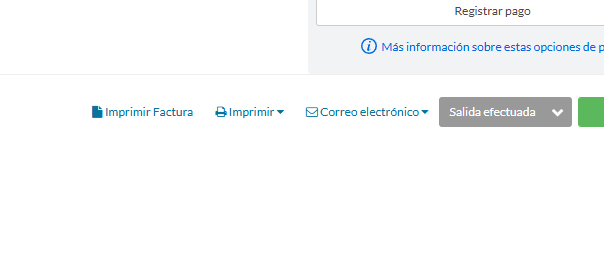
This script puts a Print Invoice button directly on the Little Hotelier reservation screen, next to the existing Print menu. One click opens the invoice, with no menu to open first. It is for front desk staff who print or download an invoice at almost every check-out.
The problem it solves
In Front Desk, the invoice sits inside the reservation's Print menu: you open the menu, then choose the invoice. Two clicks is not much once, but at check-out time, with guests waiting, it adds up, and on a tablet the small menu is easy to miss. New staff also don't always know the invoice is inside that menu.
What changes
- A new button with a document icon appears in the reservation footer, right after the Print menu button.
- Its label is Print Invoice, or Imprimir Factura when Little Hotelier is in Spanish.
- Clicking it triggers Little Hotelier's own invoice print link, the same one you would choose from the Print menu. The result is exactly the invoice Little Hotelier produces; the script does not create or change invoices.
- The original Print menu stays as it is, with all its other options.
How to install
You need the free Tampermonkey extension. Press Install on Tampermonkey on this page, confirm, and reload Little Hotelier. The installation guide has pictures for each step. The script runs on Front Desk pages at app.littlehotelier.com and only adds the button where the reservation Print button exists. It is free and open source: see the code on GitHub.
Good to know
- The script looks for the Print button a few times during the first five seconds after the page loads. If the button is missing because the reservation opened later, reload the page.
- It checks first whether its button is already there, so you never get two.
- Labels exist in English and Spanish. Other interface languages show the English label.
- It works on desktop and touch screens. With Improve Style For Touch Screens, the footer buttons also get a highlighted background.
- It stores nothing and sends nothing outside Little Hotelier.
Related
Full Width Reservation Table
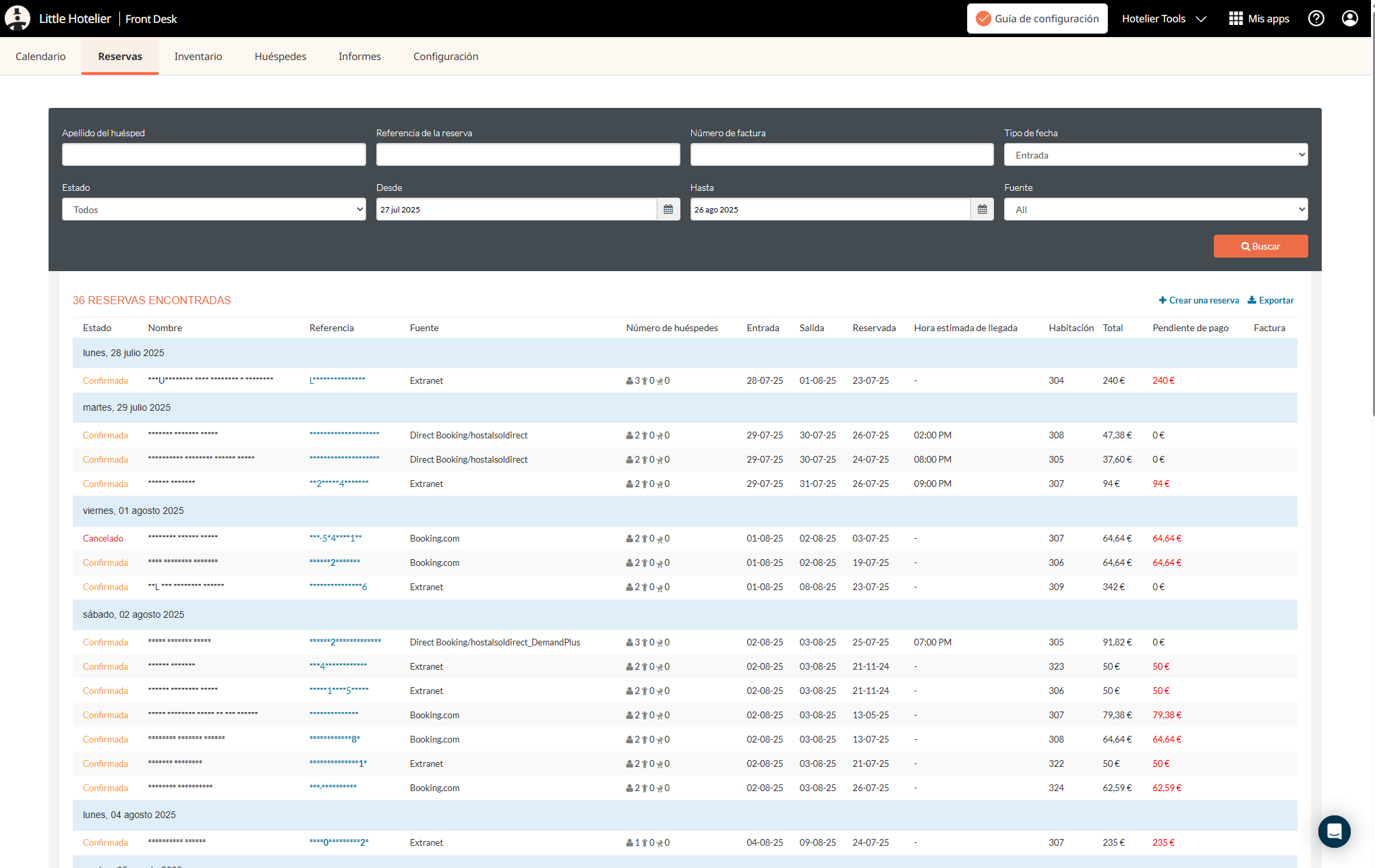
This script lets the Reservations list in Little Hotelier Front Desk use the full width of your monitor. It is for front desk staff and owners who search and review bookings on a wide screen and are tired of a narrow table in the middle with empty space on both sides.
The problem it solves
The Front Desk Reservations page keeps its content in a fixed-width column. On a large monitor the table of bookings is squeezed into that column, so long guest names wrap onto several lines and some columns need a horizontal scroll. You end up scrolling sideways and down to check a single booking, while half of the screen stays empty.
What changes
- On the Reservations page, the page heading, the content area and the main container can grow up to 2000 pixels wide instead of the standard fixed width.
- The table stretches across the screen, so columns get more room and long guest names wrap less.
- Nothing is removed or reordered: the same columns, filters and links stay in place.
How to install
Install the free Tampermonkey extension, press Install on Tampermonkey on this page, confirm, and reload the Reservations page. The installation guide shows each step with pictures. The script runs only on Front Desk pages whose address contains /reservations (app.littlehotelier.com/extranet/properties/.../reservations). It is free and open source: the code is on GitHub.
Good to know
- On screens wider than 2000 pixels, the content stops growing at that width.
- On a small laptop or a tablet there is little or no difference, because the page already fills the screen.
- Because it matches every address under /reservations, the wider layout also applies to other pages in that section, such as a reservation opened from the list.
- It only adds a style rule when the page loads. It stores nothing and sends nothing anywhere.
- For the same effect on Direct Booking tables, install Tables Full Width.
- If Little Hotelier redesigns the Reservations page, the wider layout may stop applying until the script is updated.
Related
Improve Style For Touch Screens
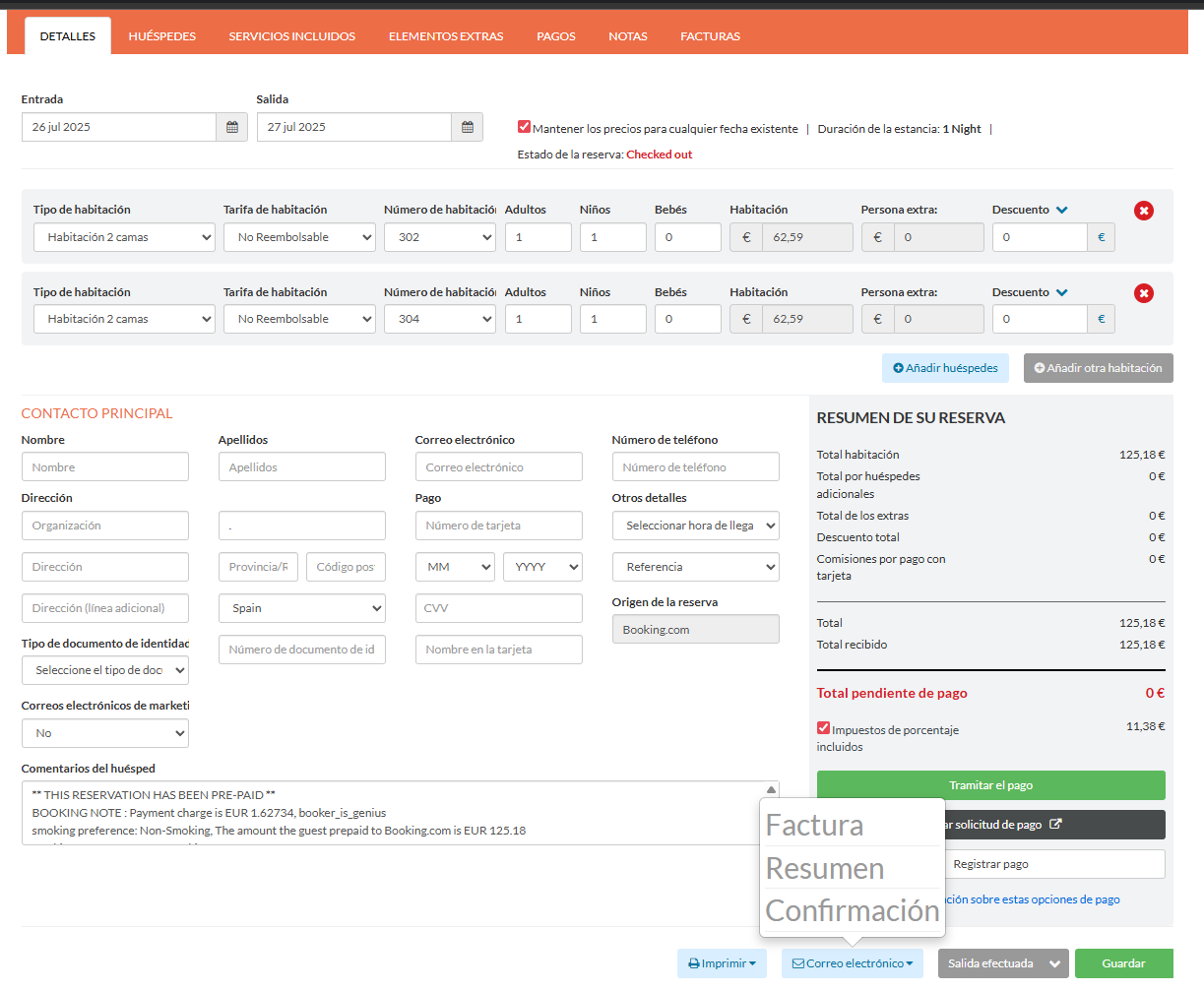
This script adjusts the Little Hotelier reservation screen for touch screens, such as a tablet at reception. It makes the Print and Email menus larger, highlights their buttons, and shows the remove-room button that otherwise only appears when a mouse hovers over it. It is for front desk teams that work on tablets or touch monitors.
The problem it solves
Little Hotelier's reservation screen is designed for a mouse. The Print and Email options open in small popover menus with small text, which are hard to hit with a finger. The button to remove a room from a reservation stays hidden until you hover over the room, and a touch screen has no hover, so on a tablet that button is hard to reach.
What changes
On the reservation screen in Front Desk:
- Remove-room button: the round button to remove a room from the reservation is always visible.
- Print and Email menus: the items in these popover menus use much larger text (30 pixels), and the menus grow wider to fit them.
- Footer buttons: the Print and Email buttons in the reservation footer get a light blue background and extra spacing, so they are easy to find and tap.
- Email invoice menu: the small info icon next to the invoice option is hidden.
How to install
Install the free Tampermonkey extension in the browser of your tablet or computer, press Install on Tampermonkey on this page, confirm, and reload Little Hotelier. The installation guide shows every step. The script runs on Front Desk pages at app.littlehotelier.com. It is free and open source: read the code on GitHub.
Good to know
- Tampermonkey must be available in the tablet's browser. Test the setup on your own device before relying on it at the desk.
- The changes also apply on a desktop computer. The remove-room button is now always on screen, so take care not to click it by mistake.
- It only changes styles. It does not change what any button does, and it stores nothing.
- The newer screens on application.littlehotelier.com, such as the calendar, are not affected.
- For more touch-friendly guest forms, Easy Save Province and Country also enlarges the add-guest and expand buttons.
Related
Prices Display
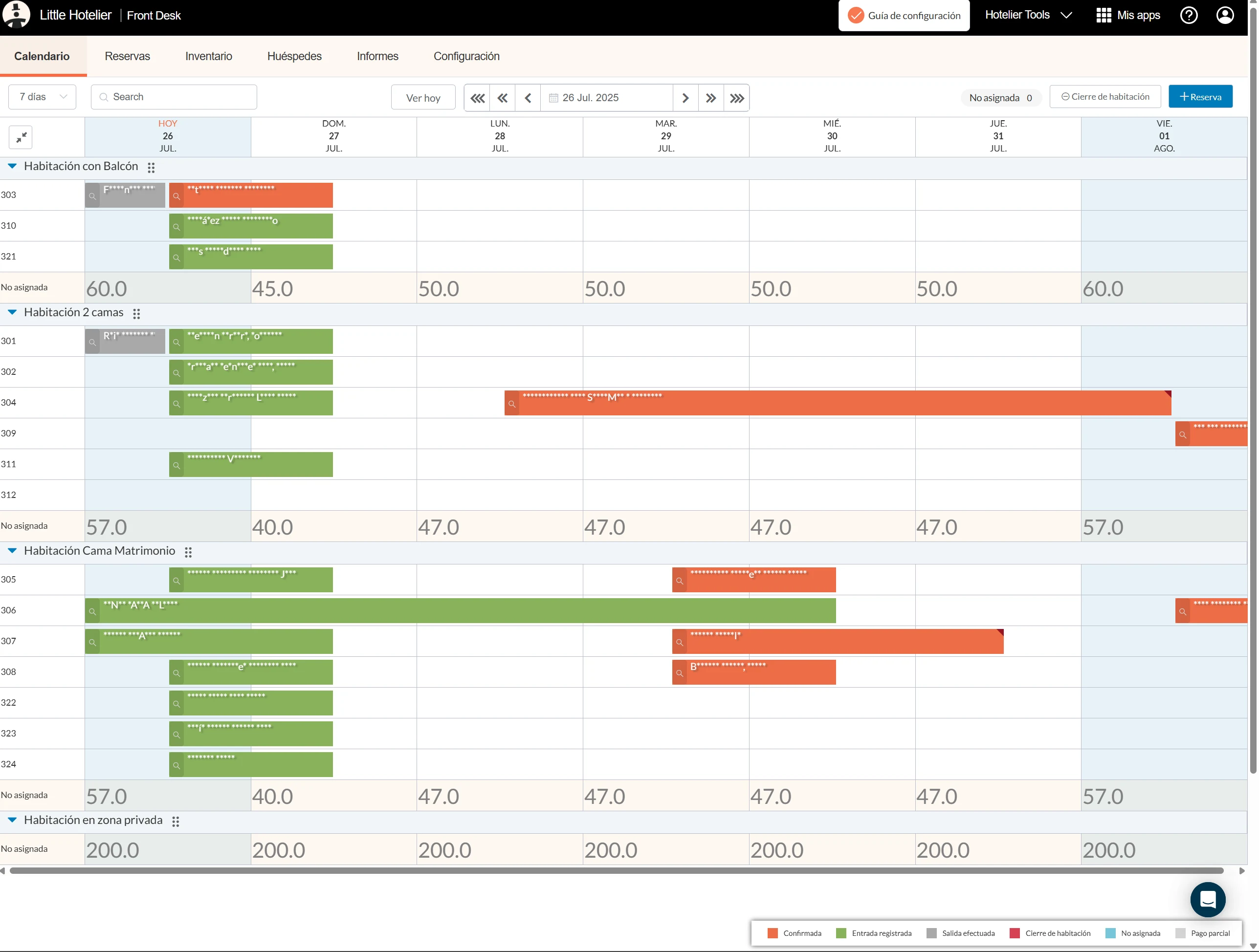
This script shows the price of each room type for each night directly on the Little Hotelier calendar. When a guest calls to ask how much Friday costs, the front desk sees it on the same screen as availability, without opening the Inventory page. It is for front desk staff taking phone and walk-in bookings, and for owners.
The problem it solves
In Little Hotelier, availability lives on the calendar and rates live on the Inventory page. Quoting a price means switching screens, finding the right dates and room type, then going back to the calendar to make the booking. At busy moments it is slow and error-prone.
What changes
- On the calendar, the last row of each room type (the unallocated row) shows that night's price for the room type.
- Prices come from your Inventory page: the script opens it in a background tab, reads the first rate row for each room type, then closes the tab.
- The Inventory page covers 14 days at a time, so for longer calendar views the script reads it in 14-day blocks, one after another.
- While a price is loading, the cell shows "...". Past dates stay empty.
- Prices appear in a larger grey font, so they stand apart from bookings.
- Moving to other dates loads prices for the new range.
How to install
You need the free Tampermonkey extension. Press Install on Tampermonkey on this page. The install screen lists the extra permissions the script uses, which let it open a background tab and store prices in Tampermonkey. Confirm, then reload the calendar. The installation guide shows each step. The script runs on the calendar (application.littlehotelier.com) and on the Inventory page it reads (app.littlehotelier.com). It is free and open source: read the code on GitHub.
Good to know
- Prices are kept in Tampermonkey's storage on your computer for up to one hour, then read again. A rate you change in Inventory can take up to an hour to show on the calendar.
- You must be signed in to Little Hotelier, because the background tab uses your session. A tab briefly opening and closing is normal.
- It shows only the first rate row of each room type on the Inventory page, not every rate plan.
- Room type names must match between the calendar and the Inventory page for a price to appear.
- The script starts four seconds after the calendar loads and waits up to 30 seconds for each Inventory block. Nothing is sent outside Little Hotelier.
Related
Show Booking.com Commissions
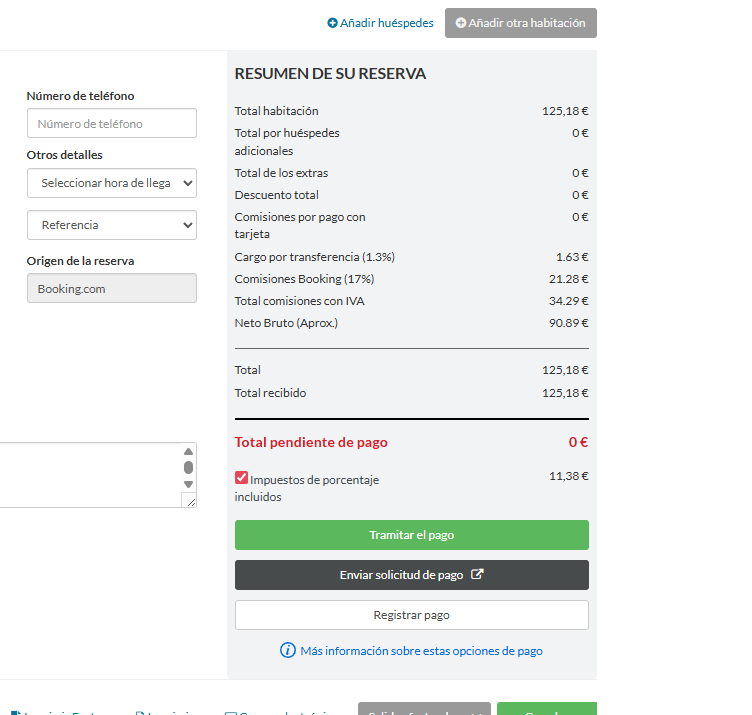
This script adds an estimate of what Booking.com keeps from each booking to the reservation screen in Little Hotelier. For Booking.com reservations it shows the transfer charge, the commission, the total deducted including tax, and an approximate net amount. It is for owners and managers who want a quick idea of how much a Booking.com reservation really earns.
The problem it solves
The reservation total in Little Hotelier is what the guest pays, not what reaches your bank. With Booking.com, the commission and payment charges come off later, on a separate invoice. Without a rough figure at hand, it is hard to compare a channel booking with a direct one, or to see whether a discount still leaves a margin.
What changes
When the reservation's booking source is Booking.com, four lines are added to the reservation summary, just above the separator line. The labels are in Spanish:
- Cargo por transferencia (1.3%): the transfer charge, 1.3% of the reservation total.
- Comisiones Booking (17%): the Booking.com commission, 17% of the reservation total.
- Total comisiones con IVA: the transfer charge plus the commission plus the tax amount shown on the reservation.
- Neto Bruto (Aprox.): the approximate net, the reservation total minus that sum.
Reservations from any other source are left unchanged.
How to install
Install the free Tampermonkey extension, press Install on Tampermonkey on this page, confirm, and reload Little Hotelier. The installation guide shows every step. The script runs on Front Desk pages at app.littlehotelier.com and only adds lines to Booking.com reservations. It is free and open source: see the code on GitHub.
Good to know
- The rates are fixed in the code: 17% commission and 1.3% transfer charge. If your Booking.com contract uses a different rate, edit those numbers in the Tampermonkey editor.
- The labels stay in Spanish and amounts are shown in euros, whatever your interface language.
- It is an estimate. Your Booking.com invoice is the final figure.
- The lines are calculated once, a few seconds after the reservation loads. If you change the total, reload the page to recalculate.
- It reads only the booking source, total and tax already on screen. It stores nothing and sends nothing anywhere.
Related
Chekin Connection
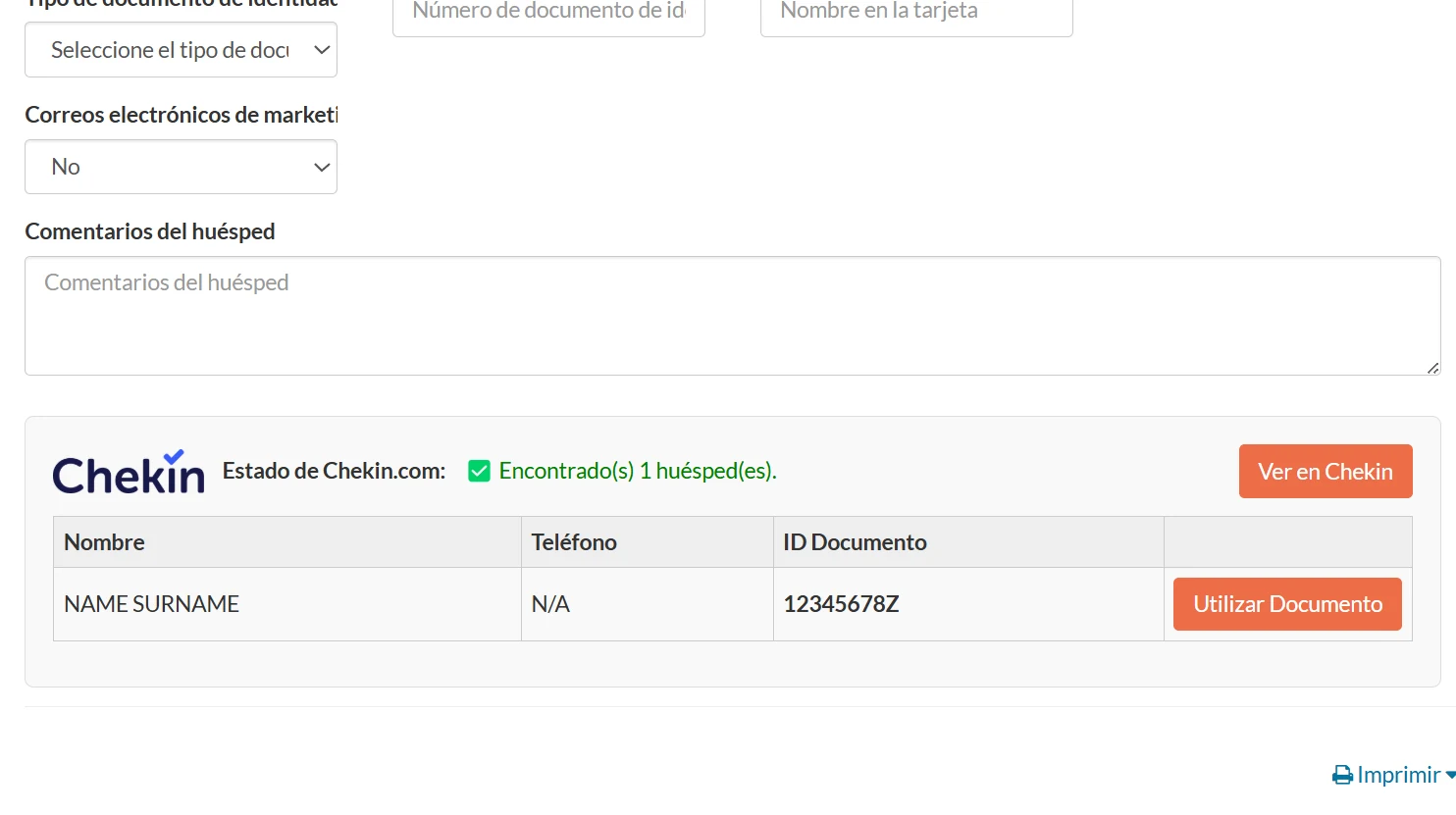
This script connects Chekin, the online check-in service, with Little Hotelier. When you open a reservation, a Chekin panel shows the guests who have already registered and lets you copy their details into Little Hotelier's guest forms. It is for front desk teams that use Chekin to collect guest IDs.
The problem it solves
Without it, every arrival means finding the booking in Chekin, checking who has registered, and copying document numbers and addresses by hand. It is slow, and copied ID numbers are easy to mistype.
What changes
On the reservation edit screen in Front Desk, a Chekin panel is added to the main contact section:
- Status: whether the reservation was found in Chekin and how many guests are registered, with a View in Chekin link.
- Guest table: name, phone, document ID, city, province and country of each registered guest.
- Use as Primary: copies that guest's document number into the main guest's ID field, ready for the invoice.
- Save Guest and Save All Guests: fill Little Hotelier's additional guest forms with the Chekin data. You then press Little Hotelier's Save button to confirm.
- Registration form link: when nobody has registered yet, the guest form link with Open, Copy, Email and WhatsApp buttons, using the guest's email and phone from the reservation.
- Create Checkin Reservation: if nothing matches, creates the reservation in Chekin from the Little Hotelier dates, rooms, guest count and contact details.
On the calendar, the script also loads Chekin data for visible reservations in the background, so reservations open faster.
How to install
You need the free Tampermonkey extension and a Chekin account. Press Install on Tampermonkey, confirm, then sign in to dashboard.chekin.com in the same browser. The installation guide shows the steps. The script runs on Little Hotelier reservation edit pages, the calendar, and Chekin dashboard pages that it opens itself. It is free and open source: read the code on GitHub.
Good to know
- It uses your own Chekin login. If you are signed out, the panel shows a Login Required on Chekin button.
- To search, it opens a Chekin tab in the background.
- The reservation needs a check-in date and an assigned room. It matches by booking reference, then by room number.
- Results are kept in your browser for up to 24 hours, and calendar preloads for up to 4 hours.
- The panel follows your browser language (English or Spanish). The shared messages end with the author's property signature; edit it in the script.
Related
Tables Full Width
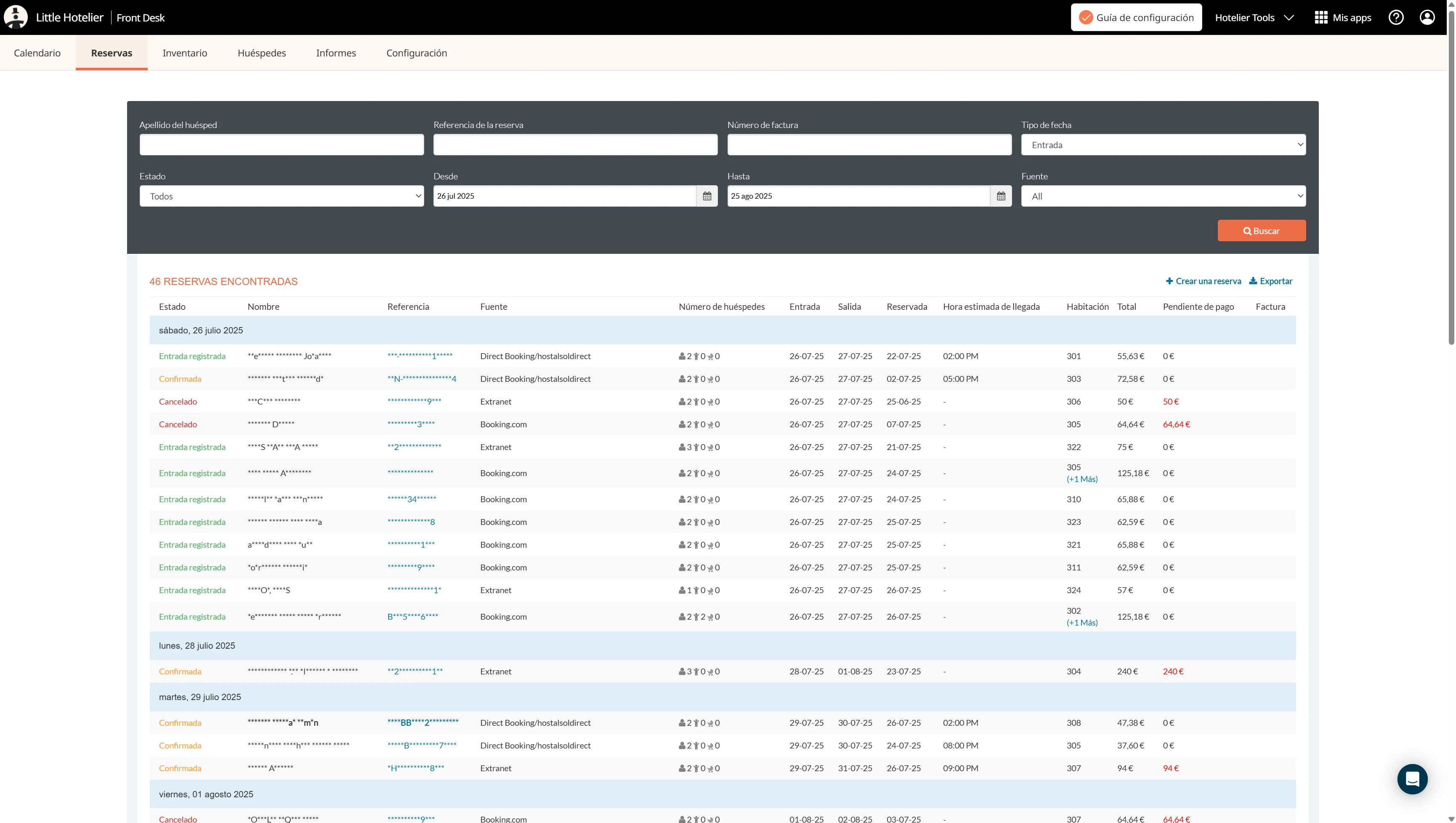
This script widens the tables in Little Hotelier's Direct Booking extranet, the booking engine back office at app.thebookingbutton.com, so they use the whole width of your screen. It is for owners and staff who check direct reservations, reports and inventory there on a laptop or a large monitor.
The problem it solves
Direct Booking keeps its pages in a fixed-width column. Reservation lists and reports are squeezed into that column, guest names are cut short, and on a wide monitor half the screen stays empty while you scroll sideways through a table. Long tables are also hard to follow across a row without losing your place.
What changes
On Direct Booking extranet pages:
- Main content area: no longer fixed width, so tables stretch across the screen.
- Reservations list: the guest name column is no longer limited in width, so full names show.
- Main container: allowed to use the full width of the window.
- Reports: use the full width of the page.
- Inventory: gets a larger maximum width and is centred, so it doesn't stretch too far on very wide screens.
- Row highlighting: in data tables, the row under your mouse pointer gets a light grey background, which makes it easier to read across.
How to install
Install the free Tampermonkey extension, press Install on Tampermonkey on this page, confirm, and reload Direct Booking. The installation guide has step-by-step pictures. The script runs only on Direct Booking extranet pages (app.thebookingbutton.com/extranet/...), so Front Desk is not affected. It is free and open source: see the code on GitHub.
Good to know
- On a small laptop or a tablet the difference is small, because the page already fills the screen.
- Row highlighting follows the mouse pointer, so it is mainly useful on a computer.
- It only adds style rules when the page loads. It stores nothing and sends nothing anywhere.
- For the same effect on the Front Desk Reservations page, install Full Width Reservation Table.
- If Little Hotelier redesigns Direct Booking, some of these adjustments may stop applying until the script is updated.
Related
Update Number Adults
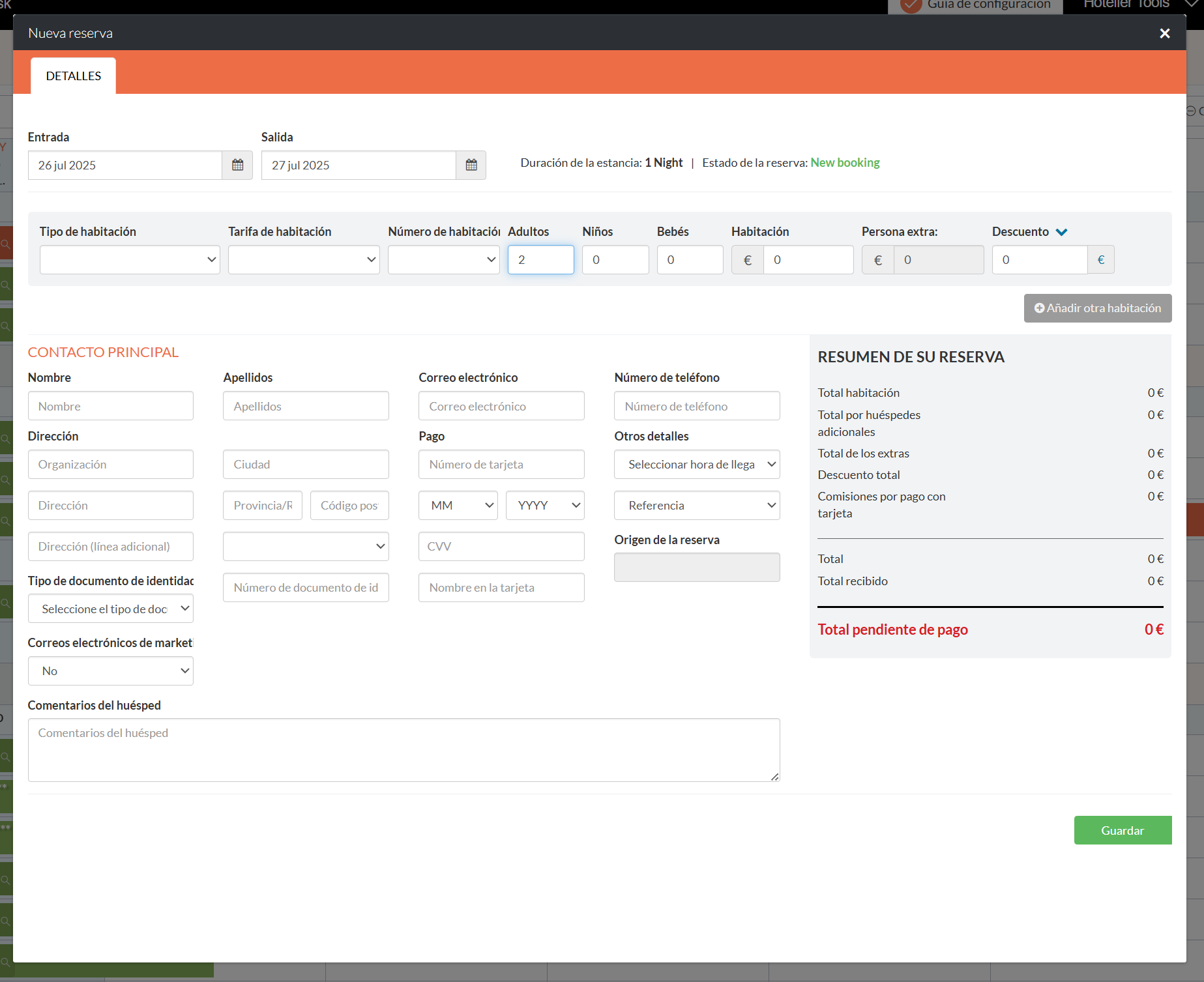
This script changes the default number of adults on a new Little Hotelier reservation from 0 to 2. It is for front desk staff who create walk-in and phone bookings by hand, where most reservations are for two people and a forgotten adults field causes trouble later.
The problem it solves
When you create a reservation in Front Desk, the adults field can start at 0. If nobody changes it, the booking is saved with no adults. Zero adults can throw off guest registration, breakfast counts and any tourist tax charged per person, and fixing it afterwards means finding and reopening each reservation.
What changes
- When a reservation page loads, the script looks at the number of adults field.
- If it is 0, the script sets it to 2 and tells Little Hotelier the value changed, as if you had typed it.
- If it holds any other number, it is left alone, so existing reservations are not touched.
- You can still change the value to 1, 3 or any other number before saving.
How to install
Install the free Tampermonkey extension, press Install on Tampermonkey on this page, confirm, and reload Little Hotelier. The installation guide shows each step. The script runs on Front Desk pages at app.littlehotelier.com and only acts when the adults field is on the page. It is free and open source: read the code on GitHub.
Good to know
- The value 2 is fixed in the code. If your property mostly sells single rooms or beds, edit the number in the Tampermonkey editor.
- The check runs once, half a second after the page loads. If a reservation form opens later without a page reload, the field is not changed.
- It only changes the field in the form. Nothing is saved until you press Save.
- The number of children is not changed.
- It works the same on desktop and touch screens. It stores nothing and sends nothing anywhere.
Related
Update Payment Link Button
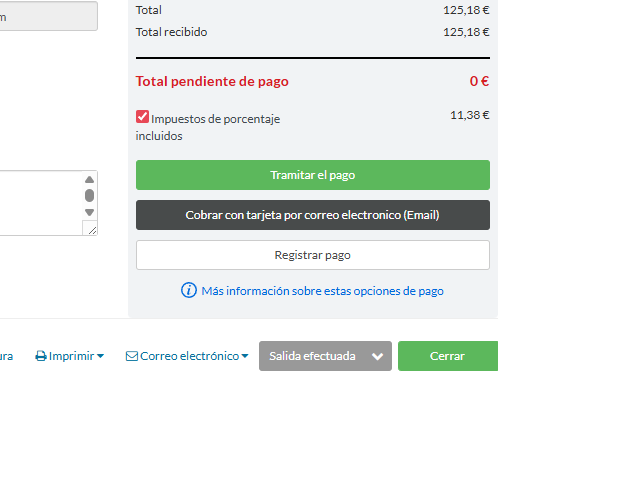
This script improves the payment link button on the Little Hotelier reservation screen. It gives the button a clearer label and adds the guest's phone number from the reservation to the payment link. It is for front desk staff who ask guests to pay a deposit or balance by card through a payment link.
The problem it solves
The standard wording of the payment request button does not make it obvious to every member of staff that this is how you ask a guest to pay by card. And the guest's phone number, already saved in the reservation, is not carried into the payment link, so it has to be entered again. Both cost time while a guest is on the phone.
What changes
On the reservation screen in Front Desk:
- The payment request button is renamed Generate Payment Link, or Cobrar con tarjeta por correo electronico (Email) when Little Hotelier is in Spanish.
- The number in the guest's phone field is added to the button's link as a phone parameter, with spaces and the "+" sign removed.
- If Little Hotelier rebuilds the link, the script applies the change again.
- If the link already includes a phone number, it is left as it is.
How to install
Install the free Tampermonkey extension, press Install on Tampermonkey on this page, confirm, and reload Little Hotelier. The installation guide shows every step. The script runs on Front Desk pages at app.littlehotelier.com and acts only when a reservation shows the payment request button. It is free and open source: read the code on GitHub.
Good to know
- It only changes the button's text and link. The payment itself is handled by Little Hotelier as usual, and the script never sees card details.
- The script reads the phone field once, as soon as it adds the number to the link. If you type or correct the number afterwards, the link keeps the first value it read, so save the reservation and reload it before using the button.
- The number is added as digits only, so include the country code in the reservation's phone field.
- Labels exist in English and Spanish. Other interface languages show the English label.
- It stores nothing and sends nothing outside Little Hotelier.
Related
All of this lives in the Hotelier Tools dashboard
Invoices, checks, prices, guest messages and INE reports for Little Hotelier. Free until 10 January 2027.