Installation Instructions
Step-by-step guide to install and set up the Little Hotelier web enhancement scripts
What do you need?
Compatible browser
Chrome, Edge, Firefox, Safari or Opera
Estimated time
5-10 minutes per script
Install Tampermonkey
Tampermonkey is the extension that lets you run custom scripts in your browser.
Choose the regular version, not the beta or legacy one.
Go to the Tampermonkey website and pick the version for your browser. It should do this automatically.
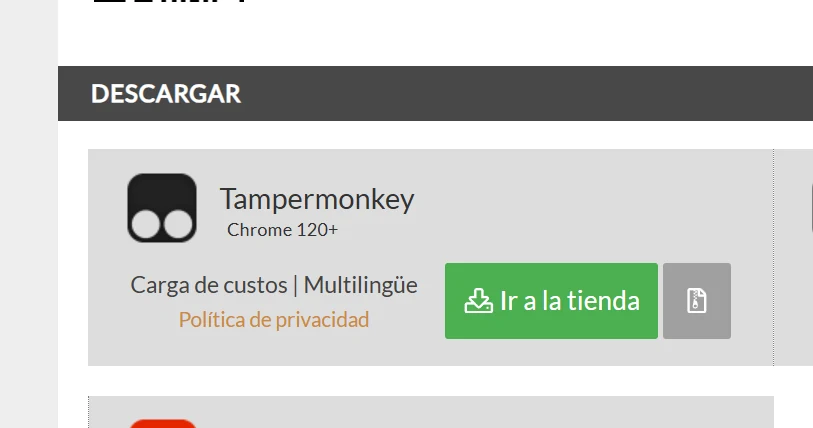
Depending on your browser, you will have to click Add to Chrome, Add to Firefox, etc.
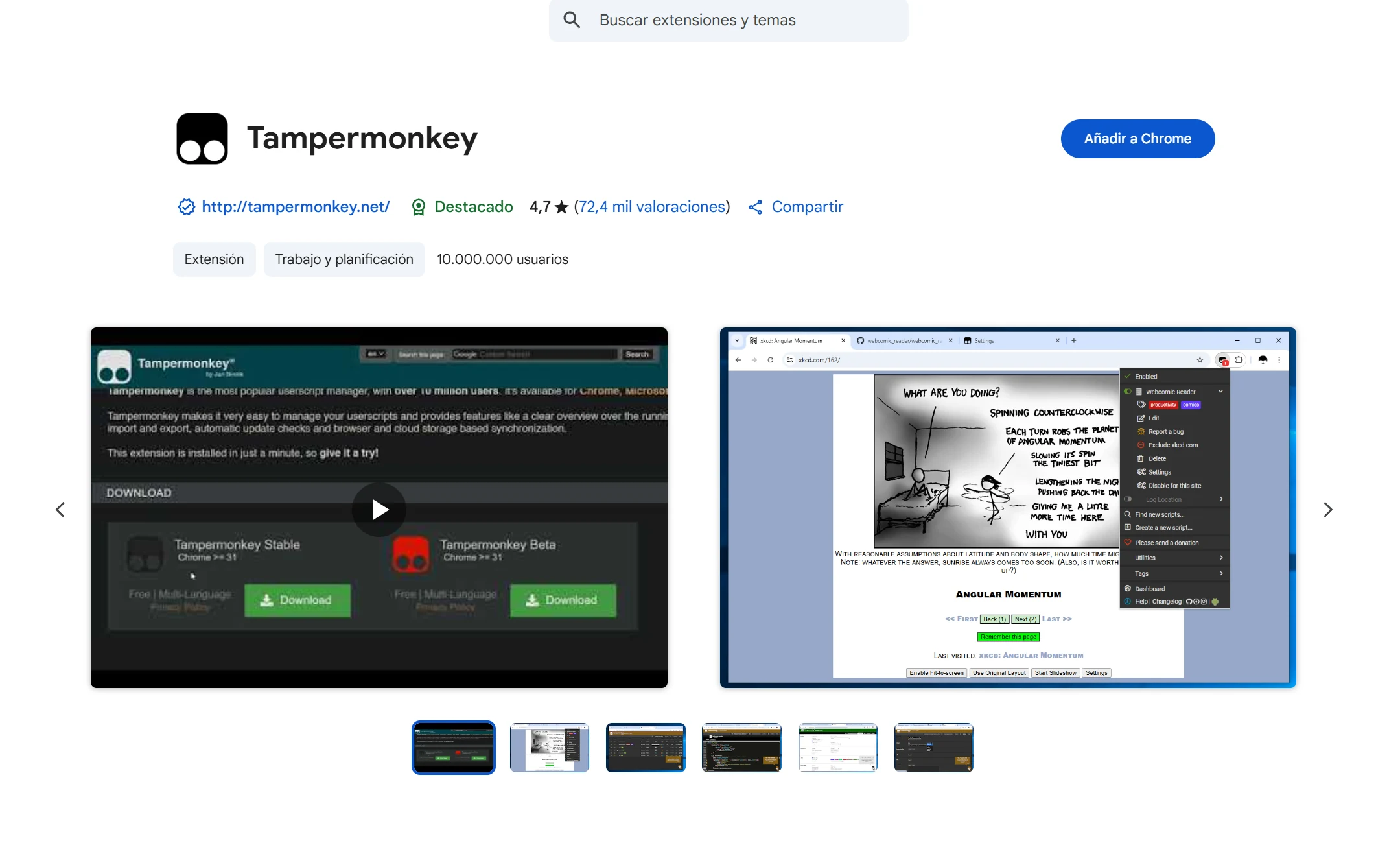
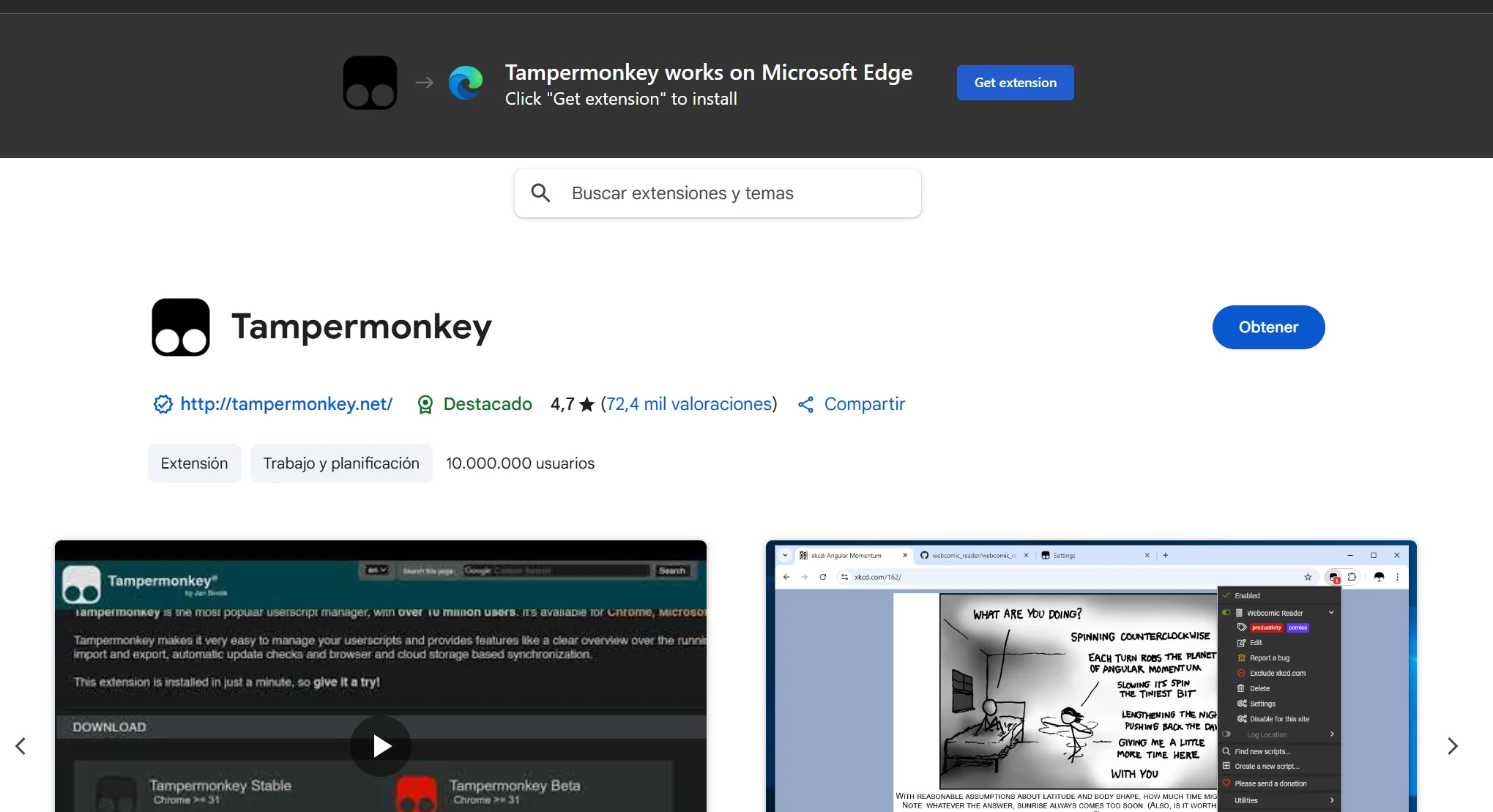
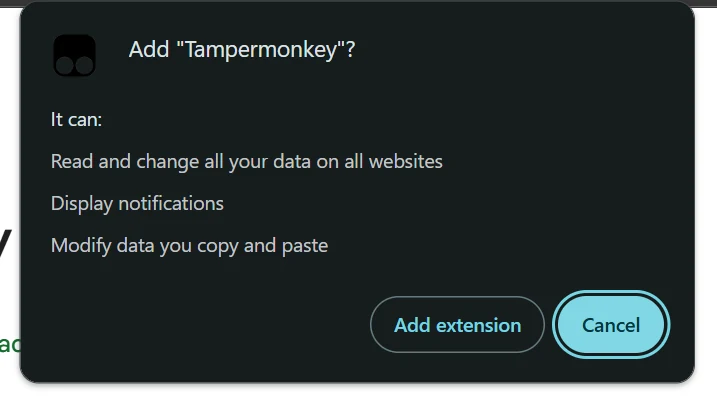
Confirm the installation and wait for the extension to be added to your browser.
Choose an enhancement script
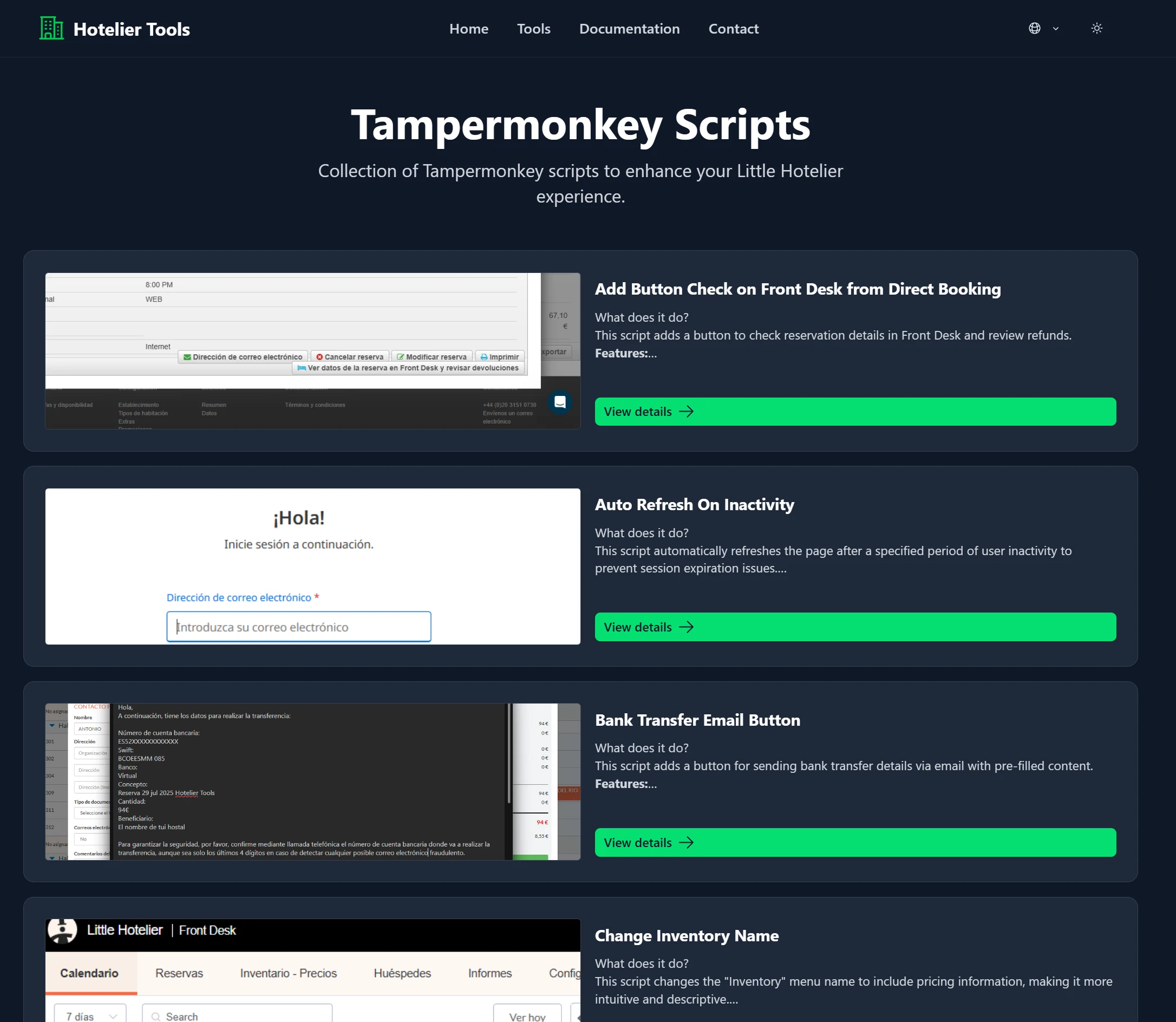
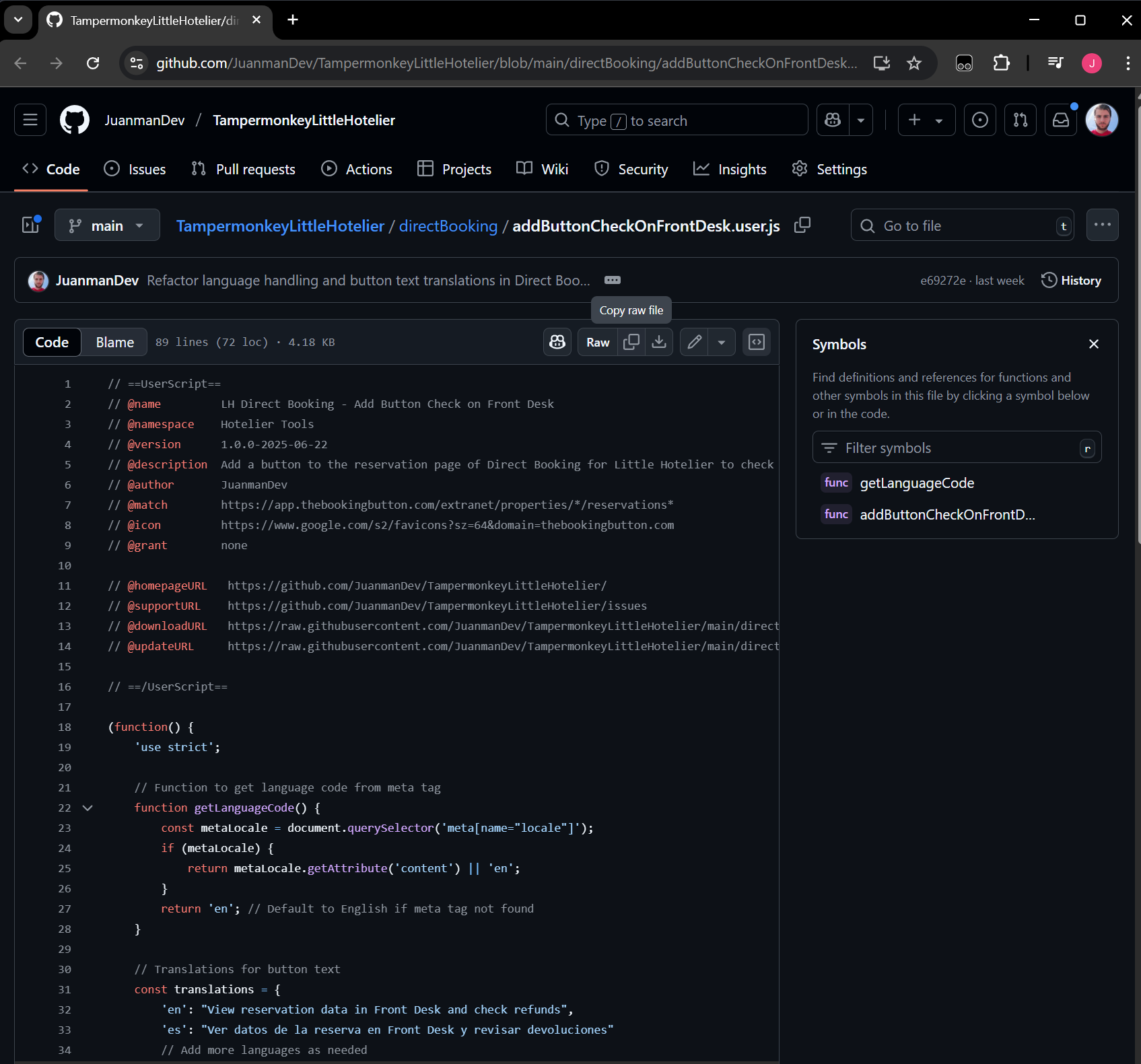
Copy the script code
Once you have chosen a script, click “View script code on GitHub to copy it” and copy all the code.
Create a new script in Tampermonkey
Open Tampermonkey from your browser icon and create a new script.
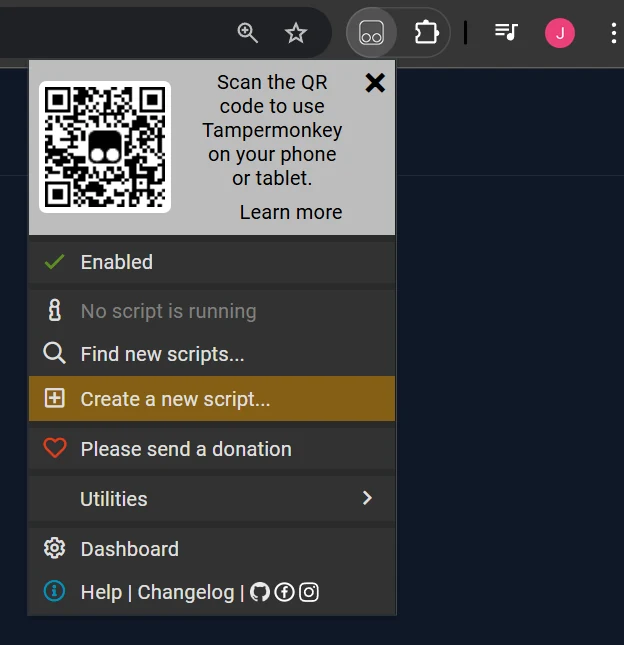
Option 1: From the icon
Click the Tampermonkey icon → “Create a new script”
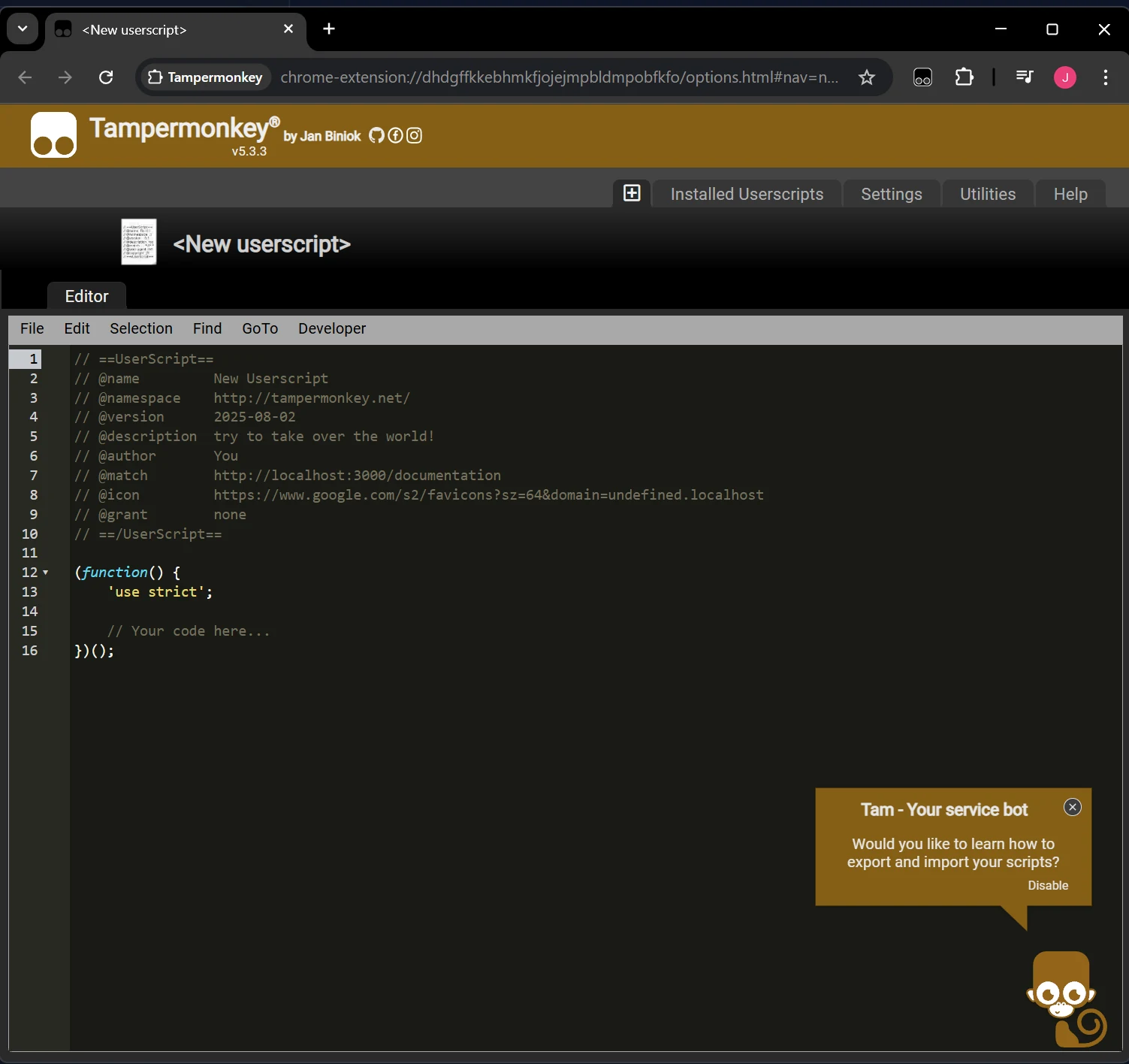
Option 2: From the dashboard
Go to the Tampermonkey dashboard → “Scripts” tab → “+”
This will open an editor where you can paste the script code.
Paste and save the script
Replace the template code with the script you copied and save.
You can use Ctrl+A to select all, Ctrl+V to paste and Ctrl+S to save.
1. Select all
Ctrl+A to select
2. Paste the code
Ctrl+V to paste
3. Save
Ctrl+S or the save button
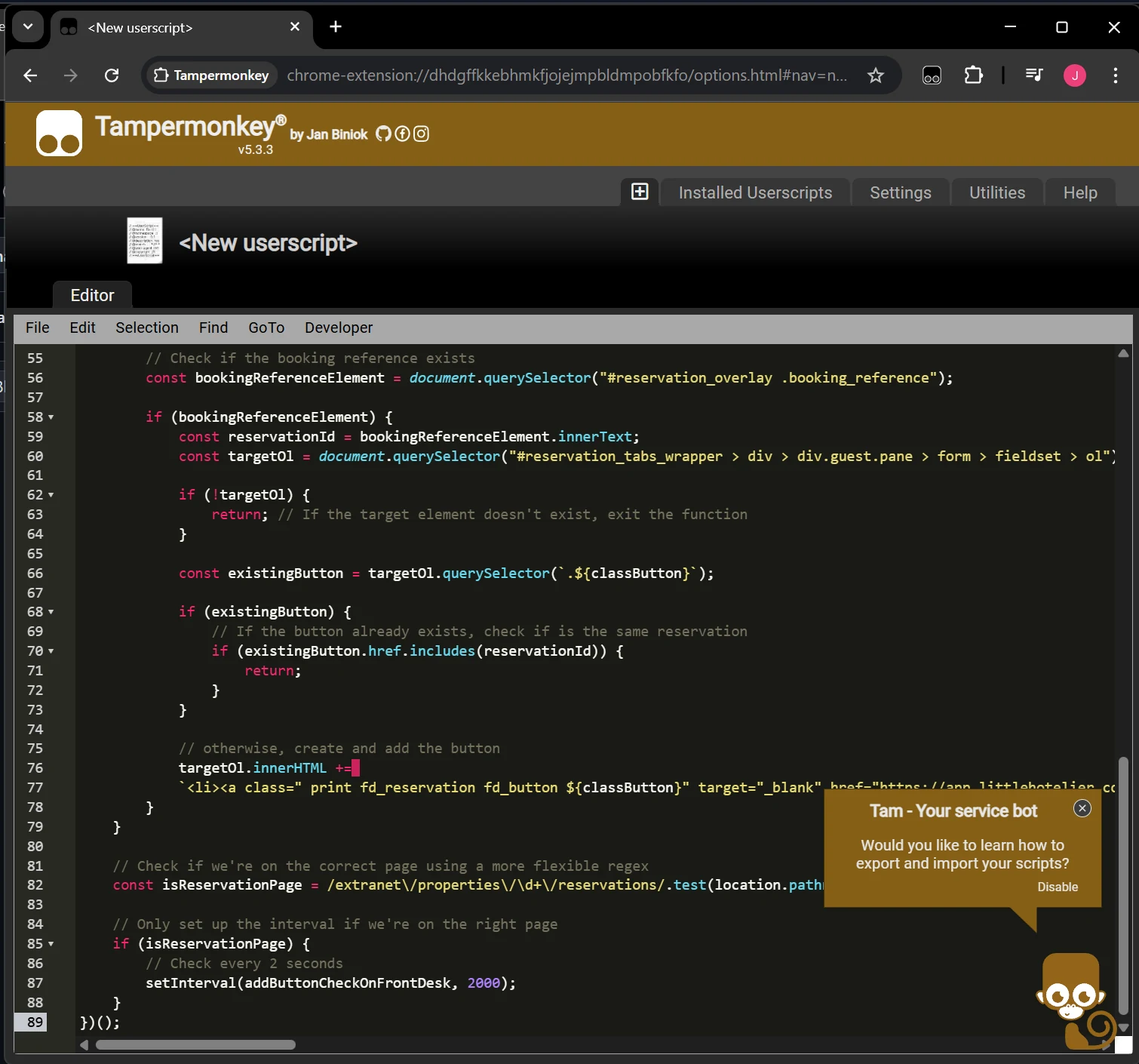
Make sure the script is saved in Tampermonkey.
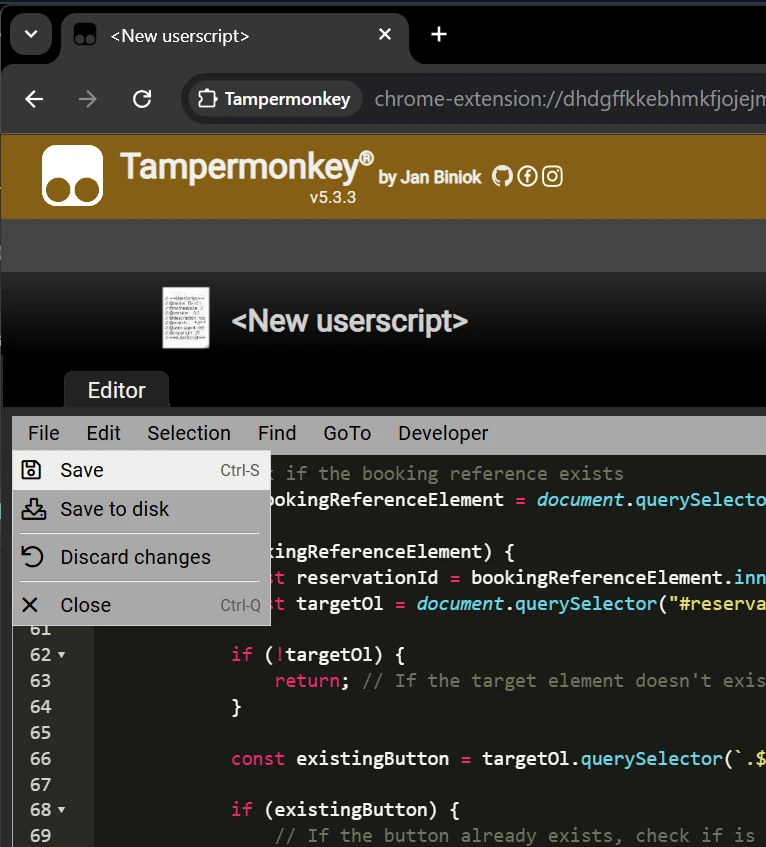
All done! Reload Little Hotelier
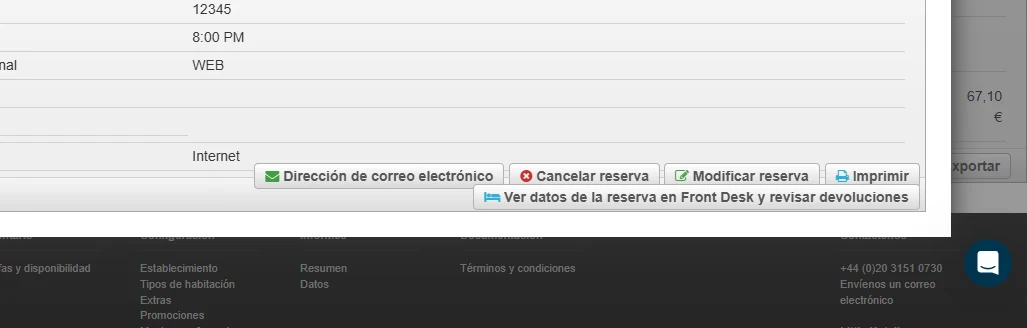
Reload the Little Hotelier page and enjoy the improvements.
Need help?
If you have any questions or run into problems during the installation, feel free to contact us.
View the scripts' source code on GitHub to report errors